



Key Takeaways
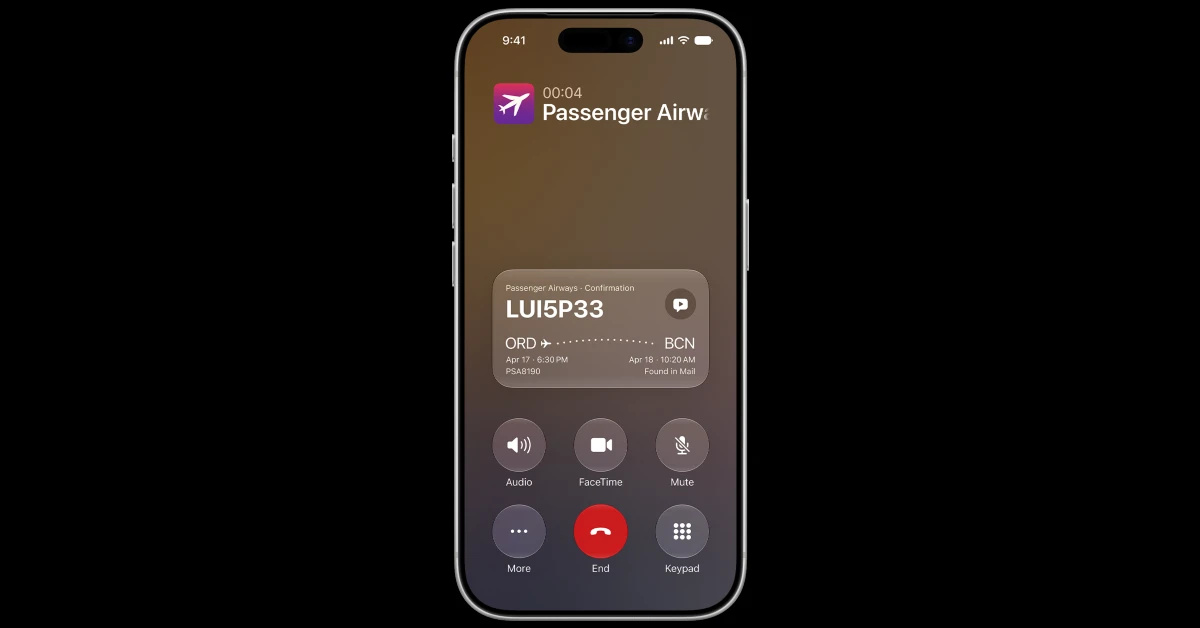
- Call Context is an Apple Intelligence feature in iOS 27 that displays context cards on the call screen when talking to businesses.
- The feature does not listen to phone conversations, but instead checks the business phone number and searches the Mail app for relevant bookings, orders, and purchases.
- Currently, Call Context only accesses the Mail app and cannot read messages, calendar entries, or photo libraries.
If you just updated your iPhone to iOS 27, you may have seen certain context cards appear on the call screen after getting on the line with a business. This is an Apple Intelligence feature called ‘Call Context’. It is baked into the native Phone app on your device, and saves you the trouble of jumping between apps when you’re talking to customer service. This feature is enabled by default. If you find it too invasive, here’s how you can disable Call Context on your iPhone.
Read Also: Xiaomi UltraThin Magnetic Power Bank 5000 15W (MDY-20-EB) Review: Style over substance?
In This Article
How does Call Context work?
If you suspect that Call Context is listening in on your phone conversations, you have the wrong idea about this feature. Instead of tapping into the call, it checks the phone number to see if you’re talking to a business. If that is the case, it dives into your email inbox to search for any relevant information related to that business. This may include bookings, orders, and purchases. The information is then displayed in a card on the call screen, so you don’t have to jump to a different app to fetch it.
At the moment, Call Context can only look into the Mail app. It can’t read your messages, look at your calendar entries, or scan your photo library for pictures of receipts. We’d like Apple to expand its scope in future updates so it can cast a wider net to gather relevant information.
Disable Call Context on iPhone
- Go to Settings.
- Tap on Apps.
- Select the Phone app.
- Go to Apple Intelligence and Siri.
- Scroll down to Suggestions and turn off the toggle switch next to Show When Calling.
Frequently Asked Questions (FAQs)
What does Call Context do on iPhone?
Call Context pulls up relevant information on your iPhone’s screen when you’re on a call with a business.
Does Call Context listen to my phone calls?
No. Call Context uses the business’ phone number to search for any relevant information that it has sent to you via email. That information is then displayed on the call screen.
Which apps does Call Context use to display information?
At the moment, Call Context only uses the Mail app to pull information related to a particular phone call.
Is Call Context available on iOS 26?
No, Call Context is not available on iOS 26. It is exclusive to iOS 27.
How do I disable Call Context on my iPhone?
Go to Settings>Apps>Phone>Apple Intelligence, scroll down to Suggestions, and Siri and turn off the toggle switch next to ‘Show When Calling’.
Read Also: Oppo Find X10 Series arrived in India, features Find X10 and X10 Pro Max
Final Thoughts
If you want to turn off Apple Intelligence entirely, go to Settings>Apple Intelligence & Siri and turn off the toggle switch next to Apple Intelligence at the top of the screen. Got any more questions? Let us know in the comments!


